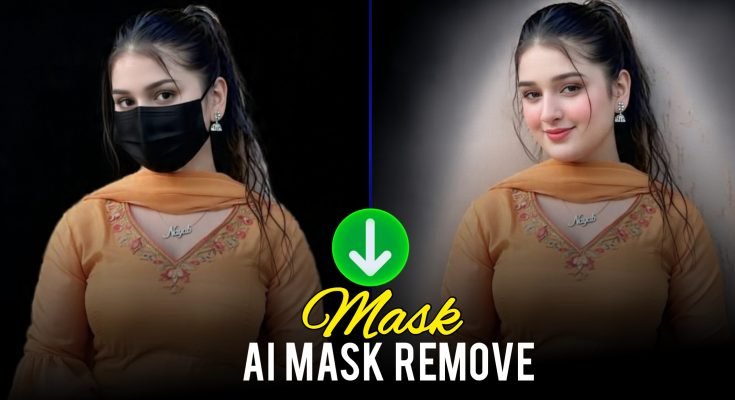
Face masks became a permanent fixture in photos over the past few years, and now a lot of people are going back through their camera rolls, wishing those old pictures showed a full face instead of fabric covering half of it. AI Mask Remove tools solve that exact problem. They detect the mask in a photo and generate a natural-looking face in its place, without the smudgy, patchy results older editing apps used to produce.
This guide walks through how the technology actually works, why it’s different from manual retouching, what results you can realistically expect, and how to get the cleanest possible outcome from any mask removal tool you choose.
What Is AI Mask Remove?
AI Mask Remove is a photo editing feature built on machine learning models trained to recognize face masks in images and reconstruct the area underneath with a realistic, computer-generated face. Instead of manually cloning skin tones pixel by pixel and guessing at facial proportions, which is how mask removal used to be done in Photoshop, the AI studies everything still visible in the photo: eyes, eyebrows, hairline, ears, jawline, and skin tone.
From that visible data, it predicts what the covered portion of the face most likely looks like and fills it in accordingly. The output, based on typical before-and-after comparisons, is a portrait where lighting, skin texture, and color all match the rest of the image, so the edit doesn’t look bolted on.
It’s worth being precise about what this actually is. The AI isn’t uncovering a hidden photo that exists underneath the mask. It’s generating a plausible face based on pattern recognition from millions of training images. That distinction matters for how you use the results, which we’ll get into further down.
How the Mask Removal Process Works
Most AI mask removal tools follow a similar four-stage pipeline, whether they’re standalone apps, browser tools, or features bundled into a bigger photo editor.
1. Upload and Detection
The photo is uploaded, and the model scans it to locate the mask. This step relies on object detection trained specifically on face coverings, so it can distinguish a mask from a scarf, a hand, or shadow across the lower face though results can vary depending on mask color, angle, and lighting.
2. Facial Landmark Analysis
Once the mask region is identified, the AI maps out everything still visible: eye position, eyebrow shape, nose bridge, hairline, and jaw contour where visible. These landmarks act as anchor points that guide how the rest of the face should be proportioned and positioned.
3. Face Generation
Using those landmarks, the model generates the missing lower-face region nose, mouth, chin, cheeks designed to be anatomically consistent with the visible parts of the face. This is the step where generative AI models (often diffusion-based or GAN-based, depending on the tool) create new pixel data rather than copying it from elsewhere in the image.
4. Blending and Retouching
The final step blends the generated region into the original photo, matching skin tone, lighting direction, and texture so the seam isn’t visible. Many tools layer in automatic skin smoothing and color correction on top, which is why finished results often look like a polished portrait rather than a raw unmasking.
The entire pipeline typically runs in seconds. Manual mask removal in a tool like Photoshop, by comparison, can take anywhere from twenty minutes to well over an hour depending on the photo’s complexity and the editor’s skill level.
Why People Use Mask Removal Tools
The appeal isn’t just novelty. There are several concrete reasons this category of tool has grown so quickly.
Restoring photos from 2020–2023. A huge number of family photos, event pictures, and candid shots from those years have masks in them. People want albums and memory books that don’t visually anchor every photo to a specific, often stressful period.
Profile pictures and headshots. LinkedIn photos, dating app profiles, resumes, and social media avatars all generally call for a full, visible face. If the only decent photo available happens to have a mask in it, removal tools offer a fast fix instead of needing a full reshoot.
Content creation. Bloggers, Pinterest creators, and social media accounts working in lifestyle or fashion niches sometimes need to repurpose older photos that were shot during mask mandates, especially for evergreen content that shouldn’t look dated.
Photography and portrait work. Photographers occasionally shoot events where subjects are masked by policy, then want the flexibility to deliver an unmasked version afterward for clients who request it.
Quick personal edits. Not every use case is professional. Plenty of people just want to see what an old photo looks like without the mask, purely out of curiosity or for personal keepsakes.
What Makes Results Look Convincing (or Not)
Not every mask removal result is equally believable, and the difference usually comes down to a handful of factors.
Amount of visible face. The more of the face that’s visible around the mask full eyes, visible hairline, clear jaw outline the more data the AI has to work with. A photo where only the eyes are visible above a mask gives the model far less to anchor a reconstruction to than a photo where the mask sits lower and more of the cheeks and jaw are exposed.
Lighting consistency. Even, front-facing lighting produces cleaner results than harsh side lighting or mixed light sources, since the AI has to replicate shadow and highlight patterns convincingly across the generated region.
Mask color and fit. Solid, plain-colored masks are easier for detection models to isolate cleanly than patterned masks or masks that blend closely with clothing or background colors.
Camera angle. Straight-on, front-facing photos generate more reliable results than angled or profile shots, where the model has to infer proportions across a rotated face.
Image resolution. Higher resolution source photos give the model more detail to work with, both for analyzing visible features and for generating a matching level of detail in the reconstructed area.
Comparing AI Mask Removal to Manual Editing
| Factor | AI Mask Remove | Manual Editing (Photoshop/GIMP) |
|---|---|---|
| Speed | Seconds | 20 minutes to over an hour |
| Skill required | None | Intermediate to advanced |
| Precision control | Limited, automated | Full manual control |
| Consistency | Varies by photo quality | Consistent if done by a skilled editor |
| Cost | Often free or low-cost | Software subscription or freelance fees |
| Best for | Quick, casual edits | Professional, client-facing work |
Neither approach is strictly better across every use case. AI tools win on speed and accessibility, which makes them the obvious choice for personal photos, social content, and situations where a “good enough” result is genuinely good enough. Manual editing still holds an edge for professional portrait work where a client is paying for pixel-level accuracy and where a subtly wrong jawline or mismatched skin tone would actually be noticed.
Things to Keep in Mind Before You Use One
It’s a reconstruction, not a restoration. Since the AI is generating a face rather than revealing one that was actually photographed, the result is a best-guess approximation. It can be remarkably convincing, but it isn’t a forensic recovery of what the person’s face looked like at that exact moment.
Consent matters. Generating a synthetic likeness of someone’s face even a plausible, AI-guessed one raises the same consent questions as any other AI face-editing technology. Using these tools on your own photos is straightforward. Using them on photos of other people without their knowledge or permission is a different situation entirely, and one worth thinking through before hitting export.
Results vary by tool. Not all mask removal tools use the same underlying model, and quality differences between apps can be significant. It’s worth testing a tool on a low-stakes photo before relying on it for something like a professional headshot.
Check the app’s data policy. Since these tools require uploading a photo to a server for processing, it’s worth glancing at how long the app retains your images and whether they’re used to train future models, particularly if you’re uploading photos of other people.
Final Thoughts
AI Mask Remove tools have turned what used to be a slow, skill-dependent editing task into something that takes seconds and requires no design experience at all. For restoring old family photos, freshening up a profile picture, or quickly repurposing content, they’re a genuinely useful shortcut. Just keep the core distinction in mind: the tool is generating a face, not revealing one, and that’s worth remembering both when judging how convincing a result looks and when deciding whose photos are fair game to edit