
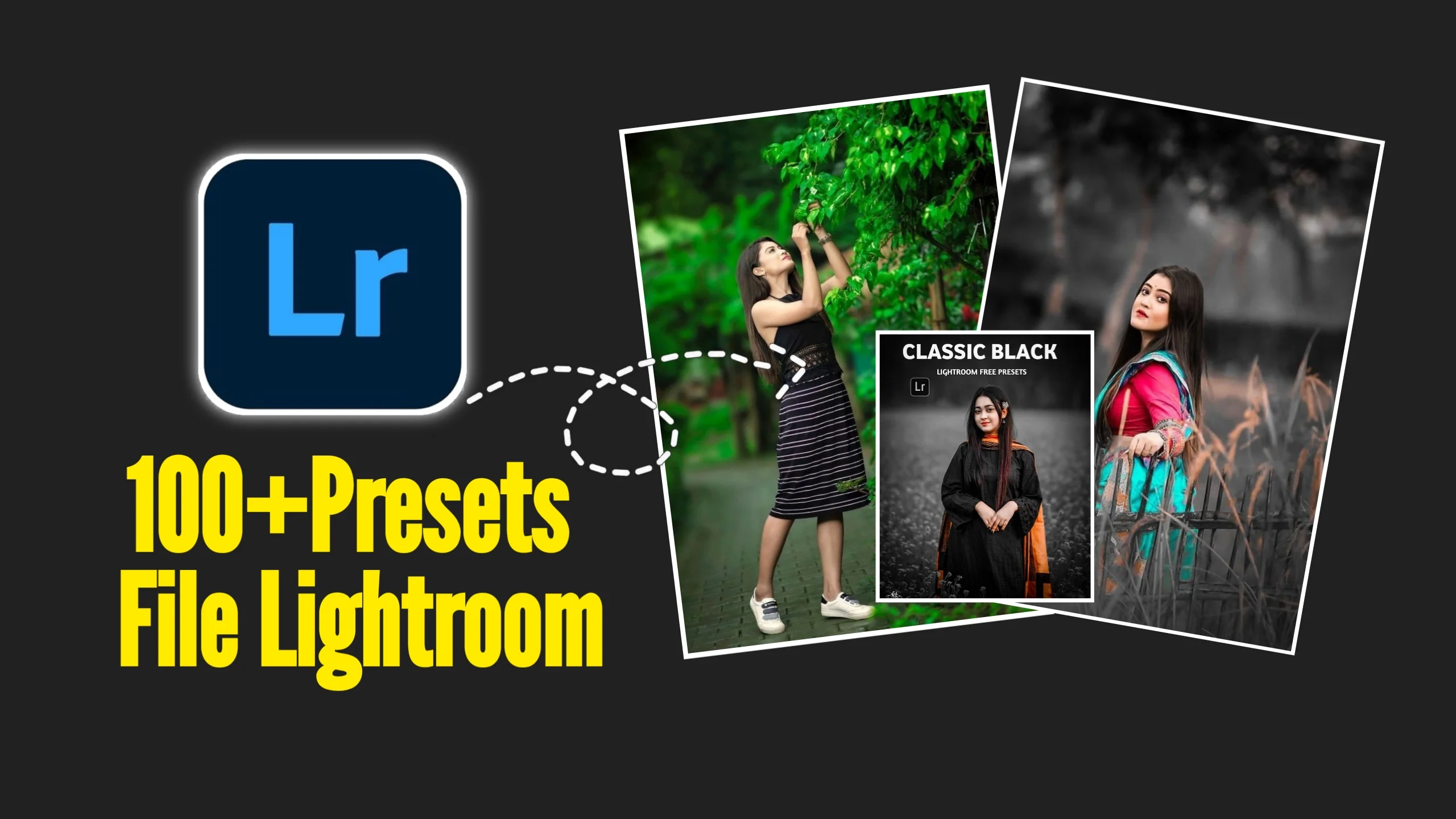
Great photography doesn’t end when you press the shutter button. Editing is what transforms a good photo into one that truly stands out. Whether you’re capturing landscapes, portraits, travel photos, or content for social media, the right editing tools can make a noticeable difference.
Adobe Lightroom Pro is one of the most trusted photo editing applications used by photographers, designers, and content creators around the world. Combined with a collection of high-quality presets, it allows you to edit photos faster while maintaining a consistent style across your entire gallery.
In this guide, you’ll learn what Lightroom Pro offers, how presets work, and how you can use them to improve your editing workflow.
What Is Lightroom Pro?
Lightroom Pro is Adobe’s professional photo editing software designed for enhancing and organizing digital images. Unlike complex image editing software that focuses on graphic design or heavy photo manipulation, Lightroom is built specifically for photographers.
It provides powerful editing tools while keeping the interface clean and beginner-friendly.
With Lightroom Pro, you can:
- Adjust brightness and exposure
- Improve colors and white balance
- Enhance details and sharpness
- Remove small distractions
- Organize thousands of photos
- Edit RAW image files
- Sync your edits across multiple devices
Whether you’re editing one image or an entire photo shoot, Lightroom makes the process efficient and organized.
Why Lightroom Is Popular
Millions of creators use Lightroom because it balances simplicity with professional-level editing features.
Some of its biggest advantages include:
- Easy-to-use editing controls
- High-quality image processing
- Cloud synchronization across devices
- Support for RAW photography
- Non-destructive editing that preserves the original photo
Since edits can be changed or removed at any time, you can experiment freely without worrying about damaging your original image.
Key Features of Lightroom Pro
1. Basic Photo Adjustments
Lightroom allows you to improve almost every aspect of an image using simple sliders.
You can adjust:
- Exposure
- Contrast
- Highlights
- Shadows
- Whites
- Blacks
- Clarity
- Texture
- Vibrance
- Saturation
These tools help recover details in bright or dark areas while improving the overall appearance of your photos.
2. Advanced Color Editing
Color correction is one of Lightroom’s strongest features.
Using the Color Mixer (HSL), you can individually adjust:
- Hue
- Saturation
- Luminance
This allows precise control over every color in your image instead of applying broad filters.
3. Selective Editing
Sometimes only one part of a photo needs adjustment.
Lightroom includes selective editing tools such as:
- Brush tool
- Radial gradient
- Linear gradient
- Subject masking
- Sky masking
These features let you edit specific areas without affecting the rest of the image.
4. RAW File Support
RAW files contain much more image data than standard JPEG photos.
Lightroom Pro can process RAW images while preserving maximum detail, making it an excellent choice for professional photography.
5. Photo Organization
Besides editing, Lightroom also works as a photo management tool.
You can:
- Create albums
- Add keywords
- Rate images
- Search your library quickly
- Organize large photo collections
This saves a significant amount of time, especially for photographers handling hundreds of images.
What Are Lightroom Presets?
Lightroom presets are saved editing settings that can be applied to a photo with a single click.
Instead of adjusting every slider manually, a preset automatically applies a specific editing style.
A preset may change:
- Exposure
- Contrast
- White balance
- Color grading
- Tone curve
- Sharpening
- Shadows and highlights
After applying a preset, you can still fine-tune every setting to suit your image.
Benefits of Using 100 Lightroom Presets
A collection of 100 presets gives you plenty of creative options for different types of photography.
You may find presets designed for:
- Portrait photography
- Travel photos
- Nature and landscapes
- Urban photography
- Night photography
- Food photography
- Fashion
- Lifestyle content
- Wedding photography
- Social media posts
Having multiple styles available allows you to quickly match the mood of each photo.
Why Beginners Love Lightroom Presets
If you’re new to photo editing, presets make the learning process much easier.
Instead of guessing which settings to adjust, you can:
- Apply a preset.
- Observe the changes.
- Modify the settings if needed.
- Learn how each adjustment affects the image.
Over time, this helps you understand professional editing techniques more naturally.
How Professionals Use Presets
Professional photographers often edit hundreds of photos from a single project.
Instead of editing every image from scratch, they apply a preset to the entire collection and then make small adjustments where necessary.
This approach helps maintain:
- Consistent colors
- Matching exposure
- Uniform editing style
- Faster delivery times
For wedding photographers, travel creators, and influencers, this consistency is especially important.
Create Your Own Lightroom Presets
One of Lightroom Pro’s most useful features is the ability to save your own editing style.
Once you’ve edited a photo the way you like it, you can save those settings as a custom preset.
Custom presets are useful if you regularly edit:
- Portrait sessions
- Product photos
- Travel images
- Outdoor landscapes
- Social media content
Over time, creating your own preset collection can significantly speed up your editing workflow.
Lightroom Mobile Makes Editing Easier
The Lightroom Mobile app brings many professional editing tools directly to your smartphone.
You can:
- Import presets
- Edit photos anywhere
- Sync edits with your Adobe account
- Continue editing on desktop later
This flexibility is especially useful for creators who publish content while traveling.
Tips for Better Results with Lightroom Presets
Presets work best when used as a starting point rather than a final edit.
For more natural results:
- Adjust exposure after applying a preset.
- Correct white balance if needed.
- Fine-tune skin tones in portraits.
- Reduce or increase preset intensity depending on the photo.
- Experiment with different presets before choosing one.
Even the best preset usually benefits from a few small adjustments.
Are Lightroom Presets Worth Using?
Yes, especially if you edit photos regularly.
Presets can help:
- Save editing time
- Maintain a consistent visual style
- Improve workflow efficiency
- Simplify editing for beginners
- Increase productivity for professionals
However, no preset works perfectly on every image. Lighting, camera settings, and shooting conditions all affect the final result, so minor adjustments are often necessary.
Frequently Asked Questions
Can beginners use Lightroom Pro?
Yes. Lightroom’s interface is beginner-friendly, and presets make it even easier to start editing professional-looking photos.
Do presets work on every photo?
They work on most photos, but some images may require additional adjustments depending on lighting and camera settings.
Can I create my own presets?
Yes. Lightroom allows you to save your edits as custom presets that you can reuse anytime.
Does Lightroom support RAW images?
Yes. Lightroom Pro fully supports RAW image editing and provides advanced controls for high-quality photo processing.
Can I use presets on mobile?
Yes. Lightroom Mobile supports importing and using presets, allowing you to edit professional-looking photos directly from your smartphone.
Final Thoughts
Lightroom Pro is one of the best photo editing tools for anyone who wants high-quality results without a complicated workflow. Its powerful editing features, cloud syncing, and photo organization tools make it suitable for both beginners and experienced photographers.
Adding a collection of 100 Lightroom presets makes editing even faster. Instead of spending time adjusting every setting manually, you can apply a preset, make a few personal adjustments, and create polished, consistent images in just a few minutes. Whether you’re editing photos for social media, personal projects, or professional work, Lightroom Pro and quality presets can significantly improve your editing experience.
