
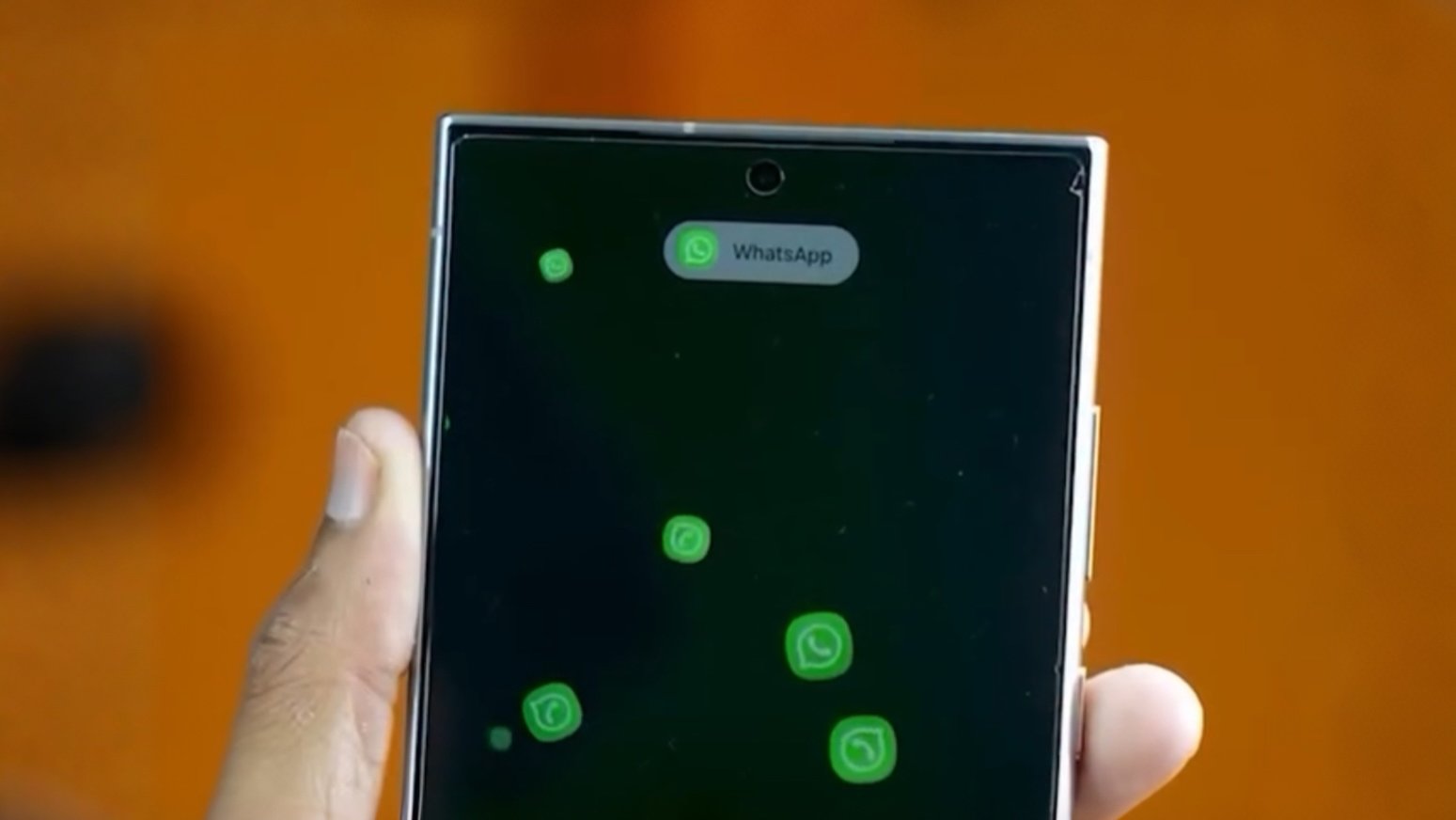
Missing an important message because you didn’t notice the notification can be frustrating. While Android already includes a notification system, many users, especially Samsung owners, want more control, better visibility, and quicker ways to reply without opening every app.
That’s where a Samsung message notification app or pop-up notification app can help. These apps display incoming messages in floating windows, show previews on the lock screen, and let you respond without interrupting what you’re doing.
In this guide, we’ll explain how pop-up notification apps work, their benefits, and some of the best options available for Samsung and other Android phones.
What Is a Pop-Up Notification App?
A pop-up notification app displays incoming messages, calls, emails, or app alerts in a small floating window over your current screen.
Instead of unlocking your phone and opening each app, you can:
- Read message previews
- Reply instantly
- Dismiss notifications
- Mark messages as read
- Open the full app when needed
Most modern notification apps also include customization options, allowing you to personalize how alerts appear.
Why Samsung Users Prefer Pop-Up Notifications
Samsung phones already include powerful notification features through One UI. However, many users install third-party apps to gain extra customization and advanced controls.
Some common reasons include:
- Larger notification previews
- Floating message windows
- Notification history
- Custom colors and themes
- Edge lighting effects
- Faster replies
- Better organization of alerts
These features can make daily communication much more convenient.
Benefits of Using a Message Notification App
A quality notification app offers more than simple alerts.
Some of the biggest advantages include:
Faster Replies
You can respond to messages directly from the notification without leaving the app you’re currently using.
Better Multitasking
Whether you’re watching videos, browsing the web, or playing games, floating notifications let you handle incoming messages without interrupting your activity.
Easy Notification Management
Many apps save notification history, allowing you to recover alerts that were accidentally dismissed.
Personalized Appearance
Most apps allow you to customize:
- Colors
- Icons
- Fonts
- Notification size
- Animation styles
- Lock screen behavior
Best Samsung Message Notification Apps
Here are some of the most popular Android notification apps that work well on Samsung devices.
NotiStar
NotiStar is part of Samsung’s Good Lock ecosystem and is designed specifically for Samsung Galaxy devices.
Key features include:
- Notification history
- Advanced search
- Filter by app
- Lock screen notifications
- Recover deleted notifications
If you own a Samsung phone, NotiStar is one of the most useful tools available.
Floatify
Floatify has remained one of the most feature-rich notification apps for Android.
It offers:
- Floating notification windows
- Quick Reply support
- Gesture controls
- Screen wake notifications
- Custom themes
The app is ideal for users who want maximum customization.
Heads-up Notifications
If you prefer a clean and lightweight experience, Heads-up Notifications is a great choice.
Features include:
- Floating alerts
- Quick dismissal
- Low battery usage
- Support for most messaging apps
Its simple interface makes it easy for beginners to use.
NotifyBuddy
Many newer smartphones no longer include a physical notification LED.
NotifyBuddy solves this by displaying animated notification lights directly on your screen.
It also offers:
- App-specific notifications
- Custom colors
- AMOLED-friendly display
- Minimal battery usage
It’s especially popular among Samsung AMOLED users.
Edge Lighting Apps
Samsung’s curved-edge notification style has inspired several third-party apps.
These apps provide:
- Edge lighting effects
- Floating notifications
- Charging animations
- App-specific colors
- Lock screen alerts
Besides looking attractive, they also make notifications easier to notice.
Always On Edge
Always On Edge combines several notification features into one application.
Highlights include:
- Edge lighting
- Notification previews
- Caller information
- Music controls
- Custom notification rules
The app works well with Samsung Galaxy devices and several other Android brands.
Glimpse Notifications
Some users simply want the screen to wake briefly whenever a new message arrives.
Glimpse Notifications does exactly that.
Features include:
- Automatic screen wake
- Lock screen previews
- Low battery consumption
- Privacy-friendly design
It’s a lightweight option that focuses on simplicity.
Smart Notify
Smart Notify combines messaging and call management in one place.
Its features include:
- SMS management
- Call reminders
- Notification history
- Quick reply
- Missed call tracking
Business users often appreciate its communication-focused tools.
Choosing the Right Notification App
Not every app is suitable for every user.
Before installing one, consider the following:
Device Compatibility
Some apps work better with Samsung’s One UI than with other Android versions.
Battery Usage
Apps that constantly wake the screen or display animations may consume additional battery power.
Privacy
Only install apps from trusted developers and review requested permissions before granting access.
Customization
If appearance matters, choose an app with themes, color options, and layout customization.
Ease of Use
Some users prefer simple notification previews, while others want advanced management tools.
Choose the app that best matches your daily needs.
Tips for Better Notification Management
To get the most from your notification app:
- Enable notifications only for important apps.
- Disable unnecessary alerts that create distractions.
- Organize notifications by category.
- Regularly clear old notification history.
- Keep the app updated for improved compatibility and security.
A well-organized notification system helps reduce distractions while ensuring you never miss important messages.
Frequently Asked Questions
Which notification app works best on Samsung phones?
NotiStar is one of the best options for Samsung Galaxy devices because it’s designed specifically for Samsung’s One UI software.
Can I reply directly from pop-up notifications?
Yes. Many notification apps support Quick Reply for messaging apps like WhatsApp, Telegram, Messenger, and SMS.
Do notification apps drain battery?
Most modern apps are optimized for low battery usage, although features like screen wake and animations may increase power consumption slightly.
Are notification apps safe?
Apps downloaded from trusted sources with positive reviews are generally safe. Always check permissions before installing any app.
Can I recover deleted notifications?
Yes. Some apps, including NotiStar and several notification managers, store notification history so you can view alerts that were accidentally dismissed.
Final Thoughts
A good Samsung message notification app can make everyday communication faster and more convenient. Whether you need floating message previews, notification history, edge lighting effects, or quick replies, there are plenty of Android apps that offer these features.
Samsung users can start with built-in solutions like NotiStar, while those looking for additional customization can explore apps such as Floatify, Always On Edge, or Glimpse Notifications. By choosing the right notification app and adjusting its settings to match your preferences, you can stay informed without constantly unlocking your phone or switching between apps.
