
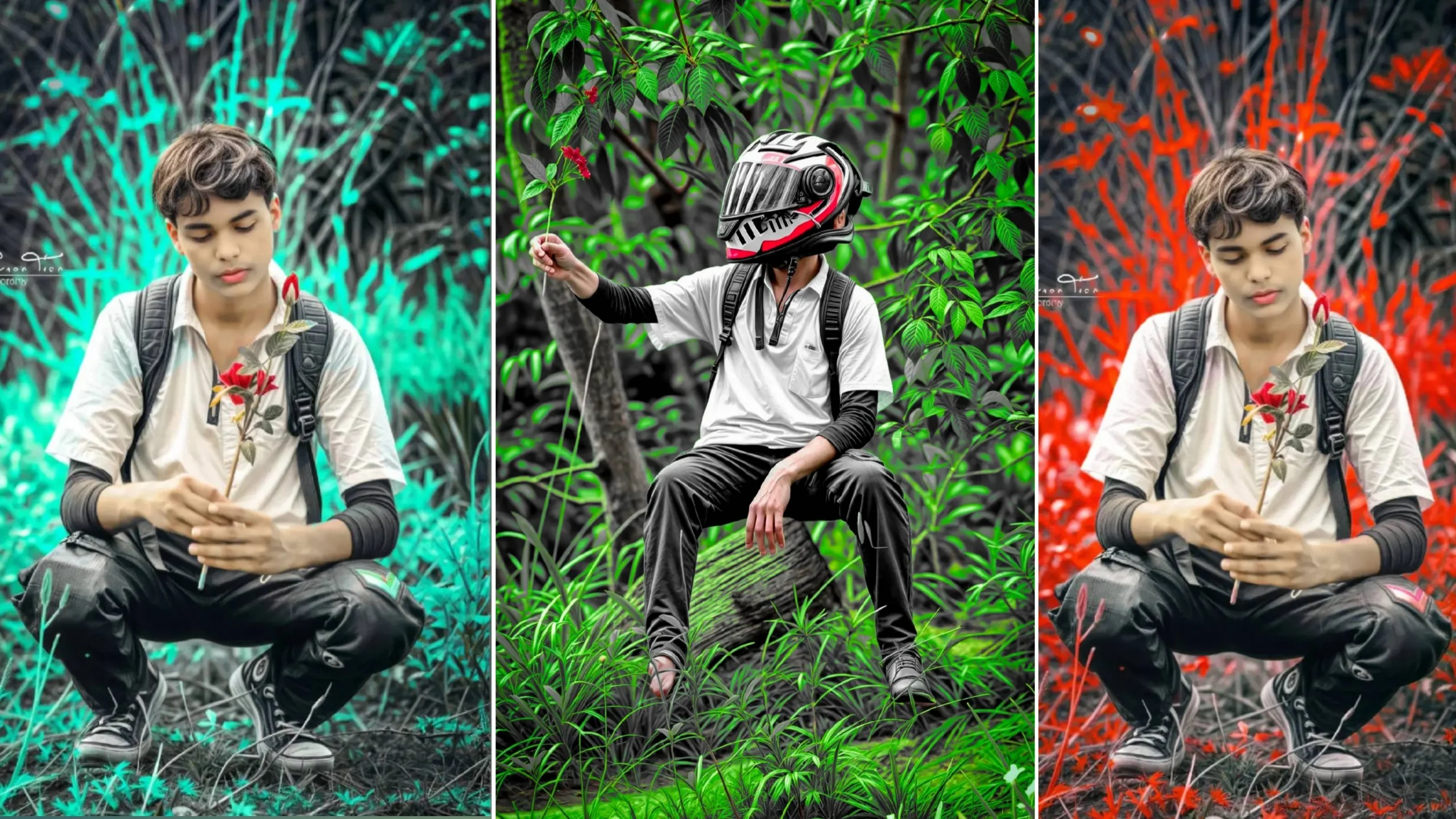
Mobile photography has improved dramatically over the past few years, and editing apps have become just as important as smartphone cameras. Whether you’re creating content for social media, editing travel photos, or improving professional images, having the right editing app can make a big difference.
Among the many photo editing apps available today, Polarr and Snapseed remain two of the most popular choices. Both offer advanced editing tools, but they focus on different types of users. In this guide, we’ll explore the latest HDR features in Polarr, compare it with Snapseed, and help you decide which app better fits your editing style.
What Is the Polarr Photo Editing App?
Polarr is a professional photo editing application available for Android, iPhone, and desktop users. It combines powerful editing tools with an easy-to-use interface, making it suitable for both beginners and experienced photographers.
Unlike basic filter apps, Polarr gives users detailed control over every aspect of an image. You can fine-tune lighting, colors, sharpness, textures, and many other settings without needing advanced editing software.
One of Polarr’s biggest strengths is its collection of creative filters and customizable presets that help users achieve professional-looking edits in just a few taps.
HDR Editing in Polarr
HDR stands for High Dynamic Range, a technique used to improve the balance between bright and dark areas in an image.
With HDR-style editing in Polarr, you can:
- Recover details from shadows
- Reduce overly bright highlights
- Improve overall contrast
- Create richer colors
- Produce more balanced outdoor photos
These tools are especially useful when editing landscape photography, sunsets, cityscapes, and high-contrast scenes.
Main Features of Polarr
1. Professional Color Adjustment
Polarr offers advanced color editing tools that allow you to customize:
- Hue
- Saturation
- Luminance
- White balance
- Color temperature
These controls help create natural-looking photos or unique artistic styles depending on your preference.
2. Advanced Presets
One of Polarr’s most popular features is its preset library.
Presets can instantly apply a complete editing style, making it easier to maintain a consistent look across multiple photos.
Popular preset styles include:
- Cinematic
- Vintage
- Portrait
- Travel
- Minimal
- Bright and clean
- Moody
- Black and white
Users can also create and save their own custom presets.
3. Selective Editing
Instead of editing the entire image, Polarr lets you adjust only specific areas.
You can brighten faces, darken skies, increase sharpness on selected objects, or improve certain colors without affecting the whole photo.
This level of control is particularly useful for portrait and landscape photography.
4. AI-Powered Enhancements
Recent versions of Polarr include AI-assisted editing features that can speed up your workflow.
Depending on the version, these tools may help with:
- Subject detection
- Background adjustments
- Color balancing
- Automatic enhancement suggestions
These features reduce editing time while still allowing manual adjustments.
5. RAW Photo Support
For photographers who shoot in RAW format, Polarr supports high-quality image editing without sacrificing important image details.
RAW editing gives you greater flexibility when correcting exposure, recovering highlights, and adjusting colors.
Snapseed Overview
Snapseed is Google’s free photo editing app and has remained a favorite among Android and iPhone users for years.
Its clean interface makes editing simple, even for beginners.
Despite being free, Snapseed includes powerful tools such as:
- Tune Image
- Curves
- White Balance
- Healing Tool
- Perspective Correction
- Selective Adjustments
- HDR Scape
- RAW Editing
It offers an excellent balance between simplicity and professional-level editing.
Polarr vs Snapseed
Both apps are capable editors, but each serves a slightly different audience.
Editing Features
Polarr offers more creative control with advanced color grading, custom filters, masking tools, and detailed adjustments.
Snapseed focuses on fast editing with easy-to-understand tools and excellent automatic corrections.
Ease of Use
Snapseed has the simpler learning curve.
Its gesture-based interface allows beginners to learn the app quickly without feeling overwhelmed.
Polarr provides more editing options but may require a little extra practice to master.
Performance
Snapseed is lightweight and performs smoothly on most smartphones.
Polarr also performs well, but advanced editing features and AI tools may require a more powerful device for the best experience.
Filters and Presets
Polarr clearly stands out when it comes to presets.
Its extensive preset collection and customization options make it popular among influencers, photographers, and content creators.
Snapseed includes several built-in looks, but they aren’t as extensive as Polarr’s preset system.
RAW Editing
Both applications support RAW photo editing.
Polarr offers more detailed creative controls, while Snapseed keeps the editing process simple and user-friendly.
Which App Is Better for Beginners?
If you’re just starting with photo editing, Snapseed is usually the easier choice.
Its straightforward layout and simple editing tools allow you to improve photos without needing advanced editing knowledge.
However, if you’re willing to spend a little time learning more advanced editing techniques, Polarr provides greater flexibility and room to grow.
Which App Is Better for Content Creators?
Content creators often need a consistent editing style across Instagram, YouTube thumbnails, blogs, and other platforms.
Polarr is particularly useful because it allows you to:
- Save custom presets
- Apply the same look to multiple photos
- Fine-tune every adjustment
- Build a recognizable visual style
For creators producing content regularly, this can save a significant amount of editing time.
Tips for Better Photo Editing
No matter which app you choose, a few editing habits can improve your results.
- Start with exposure adjustments before adding filters.
- Correct white balance for natural colors.
- Avoid excessive sharpening.
- Increase contrast gradually.
- Compare the edited image with the original before saving.
- Keep skin tones realistic in portrait photography.
Small adjustments usually produce more natural-looking results than heavy editing.
Frequently Asked Questions
Is Polarr free to use?
Polarr offers a free version with many editing tools. Some advanced features and presets require a premium subscription.
Does Polarr support HDR editing?
Yes. Polarr includes HDR-style editing controls that help improve dynamic range, highlights, and shadows for more balanced photos.
Is Snapseed completely free?
Yes. Snapseed is available free of charge and includes professional editing features without requiring a subscription.
Which app is better for professional photographers?
Professional photographers who want detailed color grading and custom presets often prefer Polarr, while Snapseed is excellent for quick, high-quality edits.
Can both apps edit RAW photos?
Yes. Both Polarr and Snapseed support RAW image editing, making them suitable for users who want greater editing flexibility.
Final Thoughts
Both Polarr and Snapseed are excellent mobile photo editing apps, but they cater to different editing styles. Polarr is ideal for users who want advanced creative control, HDR-style enhancements, customizable presets, and professional color grading. Snapseed, on the other hand, focuses on speed, simplicity, and reliable editing tools that are easy for anyone to use.
If your goal is professional-quality editing with extensive customization, Polarr is a strong choice. If you prefer quick edits and a simple workflow, Snapseed remains one of the best free photo editing apps available today. Many photographers even use both apps together, choosing the one that best fits each editing project.
